User Management
Forest Stack provides platform administrators with two key areas to monitor user activity and oversee user participation:
- User Activities – Track how users interact with datasets, models, and use cases.
- Manage Platform → Users and Contributions → Users – View and manage user accounts and their access status.
Together, these tools give administrators full visibility into user actions and allow them to maintain secure, well-governed user access.
User Activities
The User Activities tab offers a detailed log of all user interactions with assets across Forest Stack. Administrators can view the following information:
- Asset Name: The name of the dataset, model, or use case the user interacted with.
- Asset Type: Indicates the category of the asset (Dataset, Model, or Use Case).
- Activity: (Viewed, Downloaded) Shows what action the user performed on the asset.
- Date: The exact date and time the action was recorded.
- Action → View User: Allows the admin to view details of the user who performed the activity.
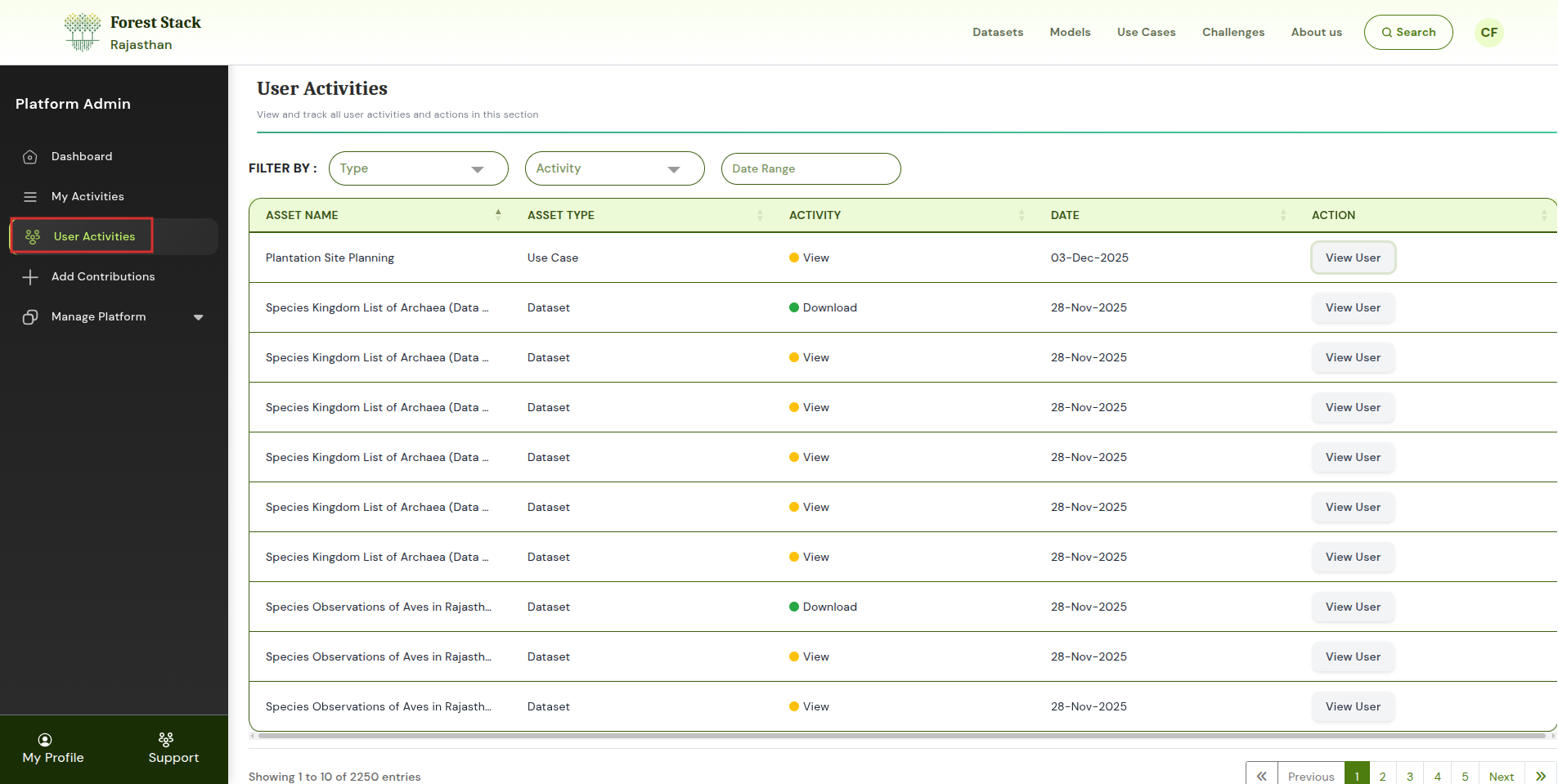
User Activities
Selecting View User under the Action column displays user details such as:
- First Name: The first name of the user who performed the activity.
- Last Name: The last name of the user associated with the activity.
- Email ID: The registered email address of the user.
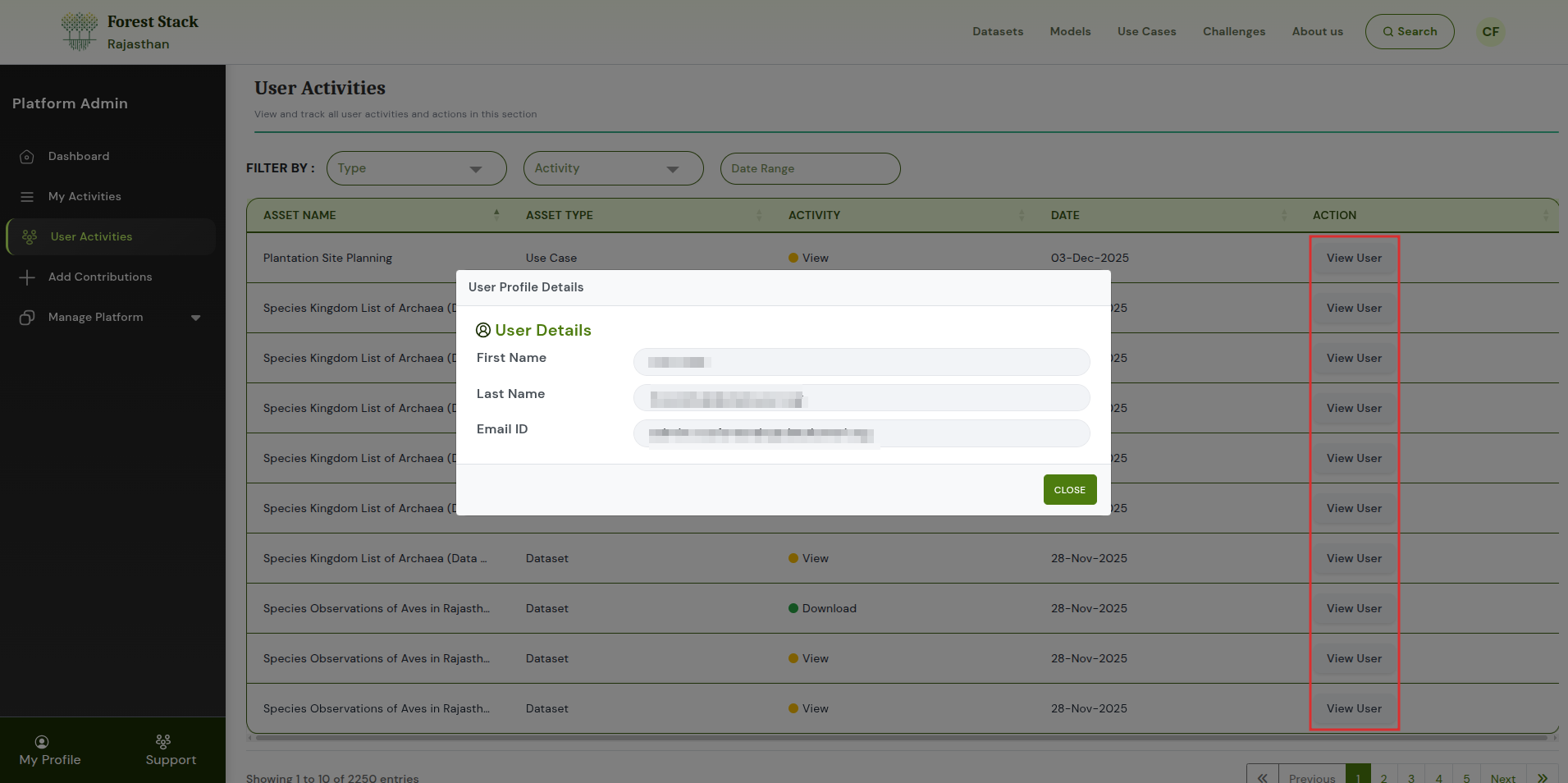
View User
This helps administrators identify which user performed a specific action on an asset.
Manage Platform → Users and Contributions → Users
Within the Users section, administrators can view essential information about all registered users, including:
- Username: The registered username of the user on Forest Stack.
- Organisation: The Data Provider Entity the user is affiliated with, if any.
- Current Role: The user’s assigned role such as Consumer, Provider, or Organisation Manager.
- Account Status: Indicates whether the user’s account is active or deactivated.
- User Added On: The date the user account was created on the platform.
- Action: Action tab for admin to view, activate or deactivate a user.
Admin Actions
Administrators can also perform the following account-related actions:
- View User – Displays detailed information about the selected user.
- Activate a User – Enables the user’s account, granting access to the platform.
- Deactivate a User – Disables the user’s account, preventing further access.
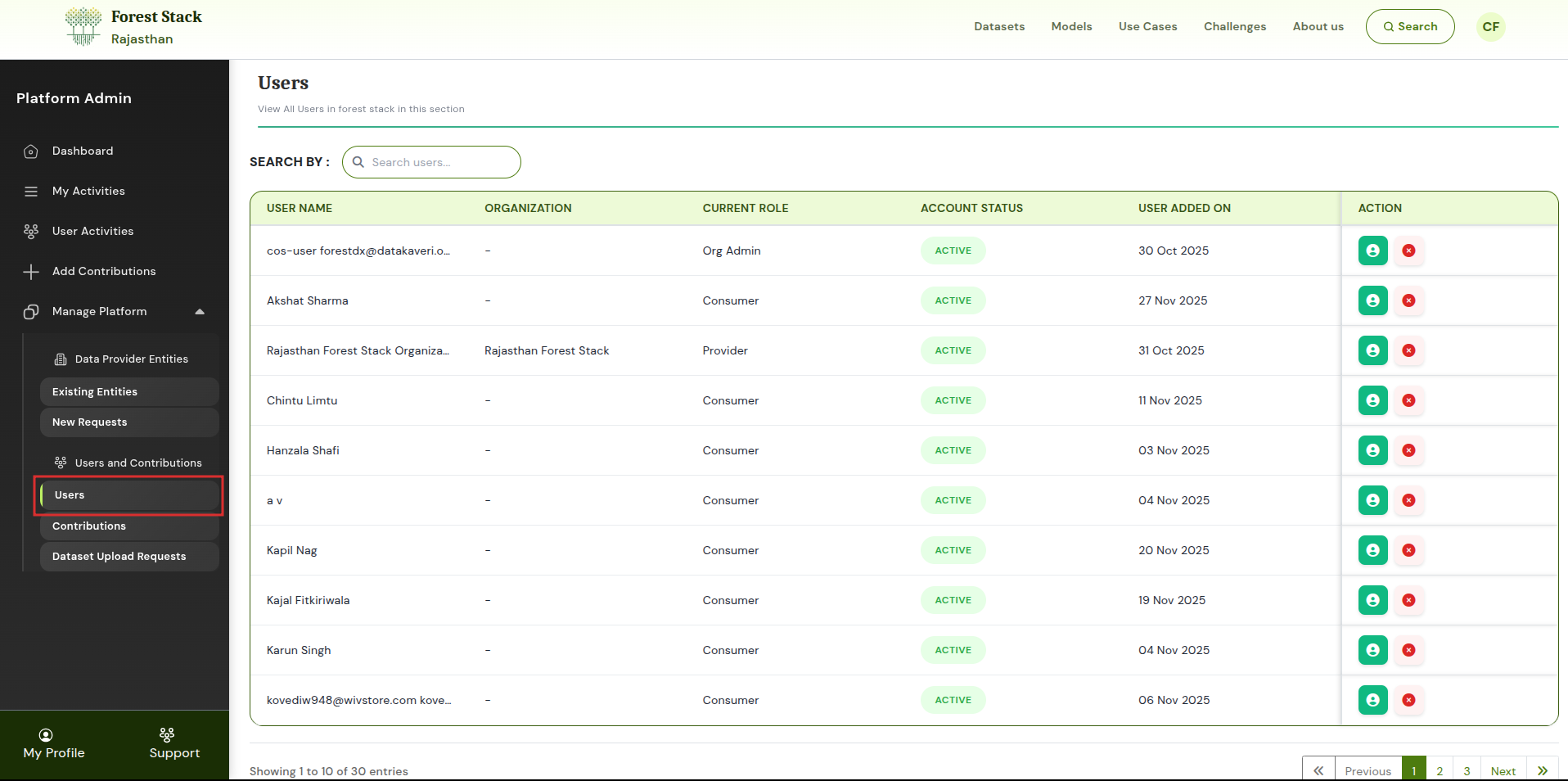
Users
These controls help maintain secure access and ensure that only authorized users have active accounts on the platform.